
1xBet App Not Installing: Every Fix in Order
If the 1xBet APK will not install, the fix usually sits in your phone’s permission settings. Work through these three phases in order and the installer prompt should appear.
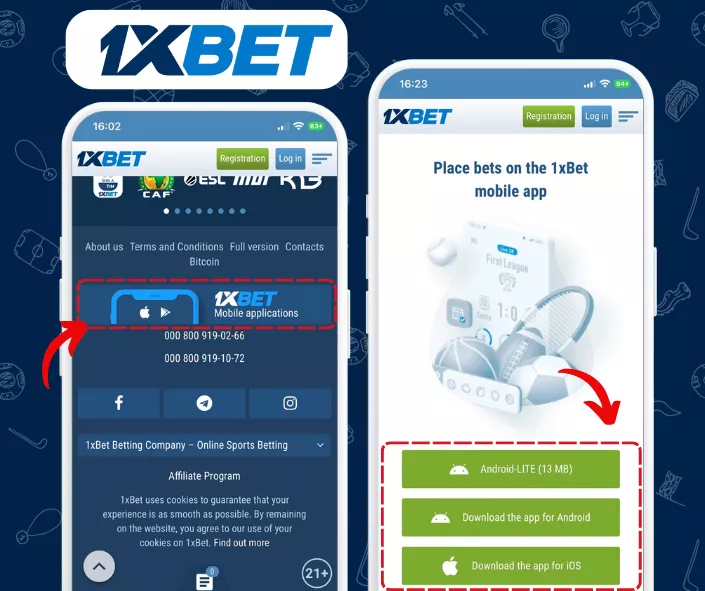
check the source permission before you tap the file
The phone blocks any download that has not come from the Play Store. Before you open the file again, tell Android that your Files app is allowed to install packages. The menu looks the same on most devices, and 1xBet users see it the same way.
- Open the Files app and find the 1xBet APK in your Downloads folder.
- Tap it once. Android will show a short security notice instead of the installer.
- Tap “Settings” inside that notice to jump straight to the right toggle screen.
- Switch on “Install unknown apps” for the Files app, then press the back arrow.
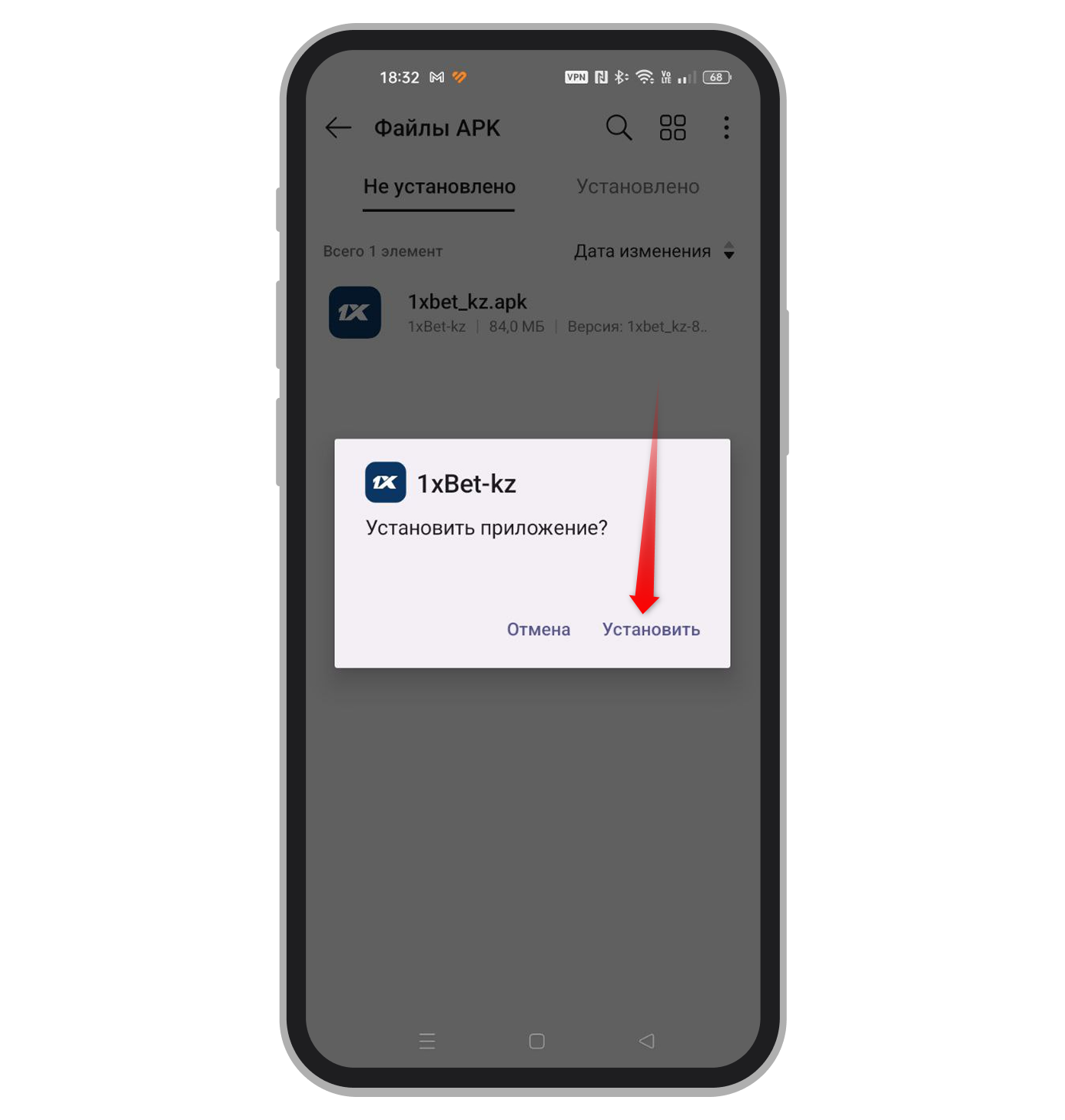
- Tap the APK again and wait for the package installer prompt to load.
- Press “Install”. A small bar runs for a few seconds on most phones.
- When you see “App installed”, tap “Open” and sign in to your account.
” The Settings button inside that notice opens a screen titled “Install unknown apps” or “Install other apps” depending on the brand. ” On some phones you will also see a line reading “Allow from this source,” which is the same toggle with different wording.
Press the back arrow once, and you should land back inside the Files app with the APK still highlighted. If the toggle will not move, a device policy or work profile may be blocking it.
clear storage and confirm the download finished cleanly
Android rejects an APK that was truncated during download, and it shows the error with little detail. Open the notification shade and look at the 1xBet download entry. It should read “Download complete” rather than “Download failed”.
If the entry looks wrong, delete it and pull the file again. Wi-Fi usually finishes the download in a minute or two on a normal connection. Then open your Settings app, go to Storage, and confirm you still have room for a new application.
Next, clear the installer’s cached data. Open Settings, then Apps, then “Package installer”. Tap Storage and choose Clear cache. Reopen the 1xBet APK from Files. If the prompt still stalls, restart the phone once and try the file a final time.
The storage screen sits under Settings and may be named “Storage,” “Storage & memory,” or “Device care” depending on your brand. Tap the line showing used space, and wait about two seconds for the breakdown to load. Aim to keep at least 1 GB free, since the installer needs room for temporary files during unpacking. On a 2019 phone the breakdown takes roughly three seconds; on a newer device it is faster.
If the 1xBet APK sits under 60 MB and you have a gigabyte spare, storage is not your blocker. Move old photos or apps if the line reads near full, then tap back and reopen Files. The cache screen for the package installer lists “App size,” “User data,” and “Cache” as three separate rows. Clearing the cache row only removes about 5 to 10 MB and does not touch your personal data.
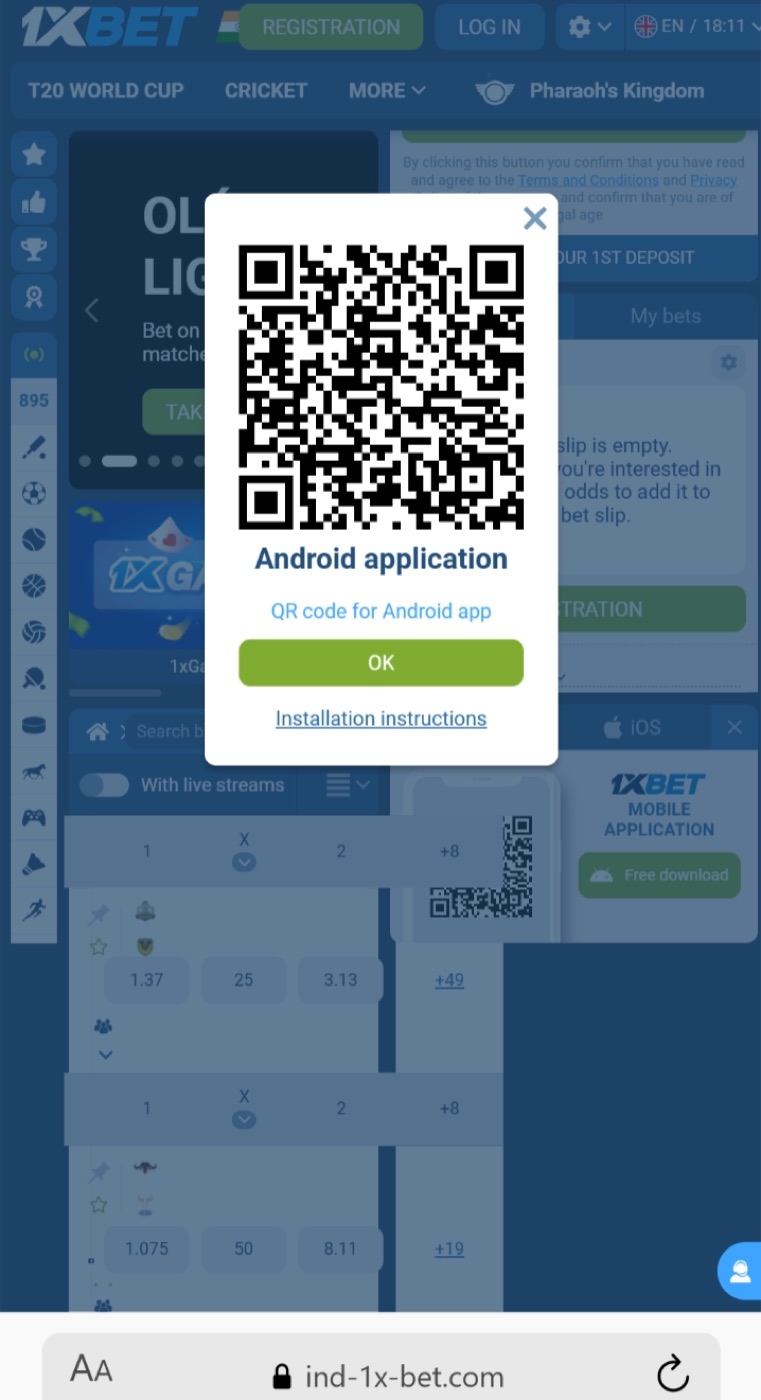
verify the build and your account side
Installation can succeed while the application still refuses to open. The last checks sit inside the app itself and in your account page:
- Update to the latest 1xBet build if the app prompts for one after launch.
- Turn off any battery saver mode that pauses background network activity.
- Allow notifications in the permission dialog so deposit and bet alerts arrive.
- Confirm your account email in the account page before placing an accumulator.
- Check that your license region is covered; 1xBet is licensed by the Malta Gaming Authority.
- Sign out and back in if the bet slip loads empty after a fresh install.
The notification permission dialog appears once, right after the first launch finishes loading. ” Tap “Allow” if you want bet settlement and deposit alerts to reach the lock screen. You can revisit this later in Settings, then Apps, then 1xBet, then Notifications.
” Turn it off while you install and sign in, then switch it back on afterward. The account page sits behind the profile icon in the top corner of the 1xBet home screen. Open it and look for the “Personal profile” row to confirm your email status.
compare the options the reader just used
Both routes solve the same installation problem, but they behave differently on screen. The Files app approach keeps the APK in your Download folder and lets you retry later. The package installer approach runs immediately and either finishes or throws an error within seconds. 1xBet supports both, so the choice depends on how confident you feel in the moment.
| Step | Files app route | Notification shade route |
|---|---|---|
| Entry point | Open Files, tap Download | Swipe down, tap the download entry |
| Timings | A minute or two on Wi-Fi to fetch | A few seconds to trigger the installer |
| Dialog met | Package installer prompt appears | Same prompt, fewer taps overall |
| Retry cost | Full re-run from the Files app | Tap the entry again, done |
If the first attempt stalls, the notification shade route is faster to restart. Placing a live accumulator on your phone starts with the 1xbet apk built for android page, and once installed the 1xBet bet slip opens in one tap. Both routes end at the same 1xBet home screen with the sports menu loaded.
On a mid-range phone the Files route takes about 40 seconds from the first tap to the “App installed” screen. The notification shade route cuts that to roughly 25 seconds because you skip navigating through folders. Both routes open the same package installer dialog with “Cancel” on the left and “Install” on the right. The progress bar under the app name moves through three quick stages before the confirmation text appears. If you tap “Done” instead of “Open,” the icon lands on your home screen and you can launch it later.
mistakes to avoid
- Leaving the “Install unknown apps” toggle off for the Files app you actually opened.
- Tapping the download entry in the notification shade before the file has finished fetching.
- Storing the APK on an SD card, which the package installer often refuses to read.
- Clearing the 1xBet application data mid-install, which resets your session without warning.
- Restarting the phone while the package installer prompt is still visible on screen.
- Downloading the file a second time while the first copy sits in the Download folder.
- Ignoring the verification step inside 1xBet, which can block login after a clean install.
Each of these mistakes produces a different on-screen symptom, and most of them hide behind vague error text. The repeated download leaves a file named like 1xBet-1.apk alongside the original. The SD card issue shows a message saying the app can’t be installed. Watch for these signals so you can correct the specific step rather than rerunning the whole checklist.
FAQ
Why does the package installer say “App not installed”?
The dialog usually means the storage check failed or an older 1xBet build is still present. Remove the old application first, then run the installer again from the Files app.
Can I install 1xBet without enabling unknown apps?
Not from a browser download. The toggle is required for the Files app to hand the APK to the package installer.
What if the download stalls in the notification shade?
Swipe the entry away and start again from your browser. A minute or two on Wi-Fi is normal for a fresh fetch.
Do I need to verify my account after installing?
Yes, the verification step inside 1xBet still applies to a newly installed build. Open the account page and complete it before your first bet.
Will reinstalling clear my bet slip?
A reinstall removes local app data, so any slip you built is gone. Place the accumulator again after 1xBet finishes loading the home screen.